
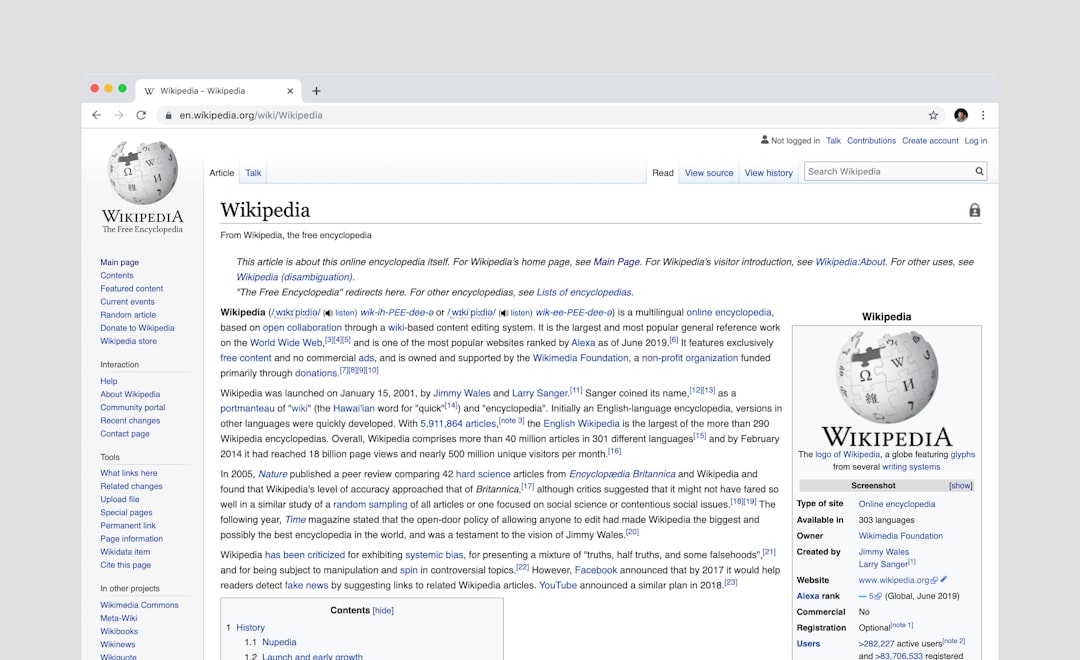
Wikipedia is one of the most visited websites in the world, serving as a favorite destination for students, researchers, and curious minds alike. Despite its vast knowledge base and simplistic interface, one feature it has lacked for a long time is an official dark mode. With extended reading or browsing time, users often seek darker backgrounds to reduce eye strain and improve focus. Thankfully, there are now multiple ways to enable dark mode while using Wikipedia, making the experience much more comfortable, especially during nighttime browsing.
TL;DR
Wikipedia does not currently offer an official dark mode setting across all platforms, but users can still enable a dark mode experience using browser settings, third-party extensions, or by switching their system’s theme. On mobile devices, Wikipedia’s apps offer built-in dark mode under their appearance settings. Extension-based solutions like ‘Dark Reader’ provide the most customizable and consistent dark experience on desktop browsers. This article outlines all the methods, depending on your device and browsing habits.
1. Why Enable Dark Mode on Wikipedia?
Dark mode provides a more comfortable reading experience in low-light environments. For frequent or nighttime readers, white screens can create glare and increase strain on the eyes. Additionally, dark mode can also help in conserving battery life for OLED screen devices. While Wikipedia strives for simplicity and accessibility, the option to customize appearance has become a popular demand among its massive user base globally.
2. Using Browser Extensions for Dark Mode
One of the most flexible and effective ways to view Wikipedia in dark mode is by using a browser extension. These add-ons allow users to customize the appearance of websites in real-time.
- Dark Reader: Available on Chrome, Firefox, Safari, and Edge, this extension automatically applies a dark theme across websites, including Wikipedia. It offers options for adjusting brightness, contrast, and font settings.
- Midnight Lizard: Another customizable extension that supports various color schemes, letting users define personal preferences for dark themes.
After installation, users can either leave the extension to run automatically or whitelist and blacklist specific sites like Wikipedia for more tailored usage.
3. Activating Dark Mode on Wikipedia Mobile App
The official Wikipedia apps for Android and iOS come with a built-in dark mode feature. This is one of the easiest methods for enabling dark themes as it doesn’t require third-party tools.
Steps for Android:
- Open the Wikipedia app.
- Tap on the Menu icon (three lines on the bottom-right corner).
- Select Settings.
- Tap on App theme, then choose Dark or Black.
Steps for iOS:
- Open the Wikipedia app.
- Tap the Settings gear icon.
- Scroll to Reading preferences.
- Select Theme and choose Dark mode.
Additionally, these apps offer a Sepia theme and custom font settings, enhancing readability according to user preferences.
4. Using Browser Developer Tools or Custom CSS (Advanced)
Advanced users comfortable with web development can apply custom CSS (Cascading Style Sheets) to invert or restyle Wikipedia to suit a dark-themed aesthetic. This method offers creative control but requires some technical knowledge.
For example, in Chrome:
- Right-click on any part of the Wikipedia page and select Inspect.
- Navigate to the Elements tab or Sources.
- Paste your custom CSS styles to override the existing light color scheme.
This method can lead to inconsistencies and is not recommended for average users. However, developers or designers who frequently use dark mode may find it highly useful for customizing specific elements on the Wikipedia site.
5. System-Level Dark Mode Settings
Modern operating systems feature a built-in dark mode, which some browsers can detect and automatically apply to websites. Here are ways users can take advantage of it:
- Windows 10/11: Go to Settings → Personalization → Colors and enable Dark.
- macOS: Open System Preferences → General and choose the Dark appearance.
- iOS & Android: Use the system-wide appearance settings to enable dark mode, which apps like Safari, Chrome, and Wikipedia will respect if supported.
While Wikipedia does not itself change its color scheme when system-level dark mode is enabled, many browsers can use force-dark features to simulate dark themes across websites.
6. Custom Wikipedia Skins (Logged-in Users)
Wikipedia offers various user skins, with some offering the option to apply alternate styling. One such skin, Vector 2022, allows logged-in users to modify the appearance using personal CSS files.
Steps:
- Log in to your Wikipedia account.
- Navigate to your settings and select the Appearance tab.
- Choose a skin like Vector.
- Create a custom CSS page for that skin, for example: Special:MyPage/vector.css.
- Add custom dark mode CSS such as:
 body { background-color: #1e1e1e; color: #ccc; }
 a { color: #8ab4f8; }
This method is best for Wikipedia contributors or tech-savvy users looking to personalize their experience.

7. Using Reader Mode in Browsers
Most browsers support a reader mode that strips down web pages into simplified, readable views. Sometimes, these reader modes support dark backgrounds or customizable themes.
- Firefox: Click the reader mode icon in the address bar and toggle dark mode.
- Safari: In Safari Reader, change background themes to dark under the “Aa” menu.
While not all Wikipedia pages may be available in reader mode, especially with complex content or templates, this can still be a useful option for article-heavy reading sessions.
Conclusion
While an official dark mode is still absent from Wikipedia’s desktop site, there are various methods to implement a similar experience. Browser extensions like Dark Reader are the most popular solution, while mobile users enjoy built-in dark options. For developers or advanced users, manual customizations using CSS provide a highly personalized browsing environment. Whether you’re casually browsing or conducting deep research, enabling dark mode on Wikipedia is entirely possible with a few tweaks tailored to your device and habits.
Frequently Asked Questions (FAQ)
1. Does Wikipedia have a built-in dark mode on desktop?
No, the desktop version of Wikipedia does not currently offer an official dark mode. However, users can utilize browser extensions, reader mode, or custom CSS to achieve dark mode visuals.
2. Is there a dark mode on the Wikipedia mobile app?
Yes, both Android and iOS Wikipedia apps offer dark mode settings directly from the app’s Appearance or Theme settings menu.
3. Are browser extensions safe to use?
Extensions like Dark Reader are widely trusted and well-reviewed. To ensure safety, always download extensions from the official browser store and avoid unknown third-party sources.
4. Will the system’s dark mode automatically apply to Wikipedia?
Not directly. While some browsers may render websites like Wikipedia in dark mode based on system settings, this behavior varies based on the browser and operating system.
5. Can I customize Wikipedia’s skin for dark mode?
Yes, for logged-in users, Wikipedia allows creating personal CSS files for different skins like Vector. This allows users to customize background colors, fonts, and links as desired.
6. Does dark mode save battery life?
Yes, particularly on OLED and AMOLED screens, using dark interfaces can save battery by reducing power consumed by brightly lit pixels.
