Direct messages (DMs) on X play a central role in both personal and professional communication. Whether you are managing a business account, building a brand, or simply staying connected with friends, understanding how notifications work is essential. Many users wonder if X sends notifications for DMs automatically, how those alerts appear, and how to control them effectively. This guide explains everything you need to know about DM notifications on X and how to manage them with confidence.
TLDR: Yes, X sends notifications for DMs by default, including push notifications, in-app alerts, and sometimes email notifications. You can customize or disable these alerts in the app’s Settings under Notifications and Privacy. Control is available at multiple levels, from turning off all DM alerts to muting specific conversations. In just five steps, you can fully tailor your notification experience.
Does X Send Notifications for DMs?
By default, X notifies users when they receive a new direct message. These notifications can appear in several ways:
- Push notifications on your mobile device
- In-app notifications while you are using X
- Email notifications (if enabled)
- Badge icons indicating unread messages
The exact notification type depends on your device settings and your preferences within the X platform. For most users, push notifications are automatically enabled when installing the app, provided notification permissions are granted.
However, notification behavior may differ if:
- You have muted a specific conversation
- Your device’s system notifications are turned off for X
- You are using “Do Not Disturb” mode
- Email notifications have been disabled
Understanding these variables is critical if you are missing messages or receiving too many alerts.
What Types of DM Notifications Can You Receive?
X offers layered notification controls, allowing you to fine-tune how and when you’re alerted. Here is a breakdown of common notification types.
1. Push Notifications (Mobile)
These are real-time alerts sent directly to your smartphone or tablet. They typically display:
- The sender’s username
- A preview of the message (depending on your privacy settings)
- A sound or vibration alert
If you’re actively managing customer inquiries, push notifications are often the most important type to keep enabled.
2. In-App Notifications
When you are logged into X, new DMs appear instantly inside the Messages section. You will typically see:
- A highlighted conversation
- An unread message indicator
- A numeric badge count
This method is useful if you prefer checking messages manually rather than being interrupted by constant alerts.
3. Email Notifications
X may send email notifications for direct messages if this option is enabled within your settings. Email alerts can be helpful for business accounts or users who do not frequently open the app.
However, many users disable email notifications to reduce inbox clutter.
How to Control DM Notifications in 5 Steps
Managing notification preferences on X is straightforward when you follow a structured process. Below is a reliable five-step guide.
Step 1: Access Settings and Privacy
Start by opening the X app or visiting X.com in your browser.
- Tap or click your profile icon
- Select Settings and Privacy
This is where all notification and account configurations are stored.
Step 2: Navigate to Notifications
Within Settings, select Notifications. You will see categories such as:
- Filters
- Preferences
- Email notifications
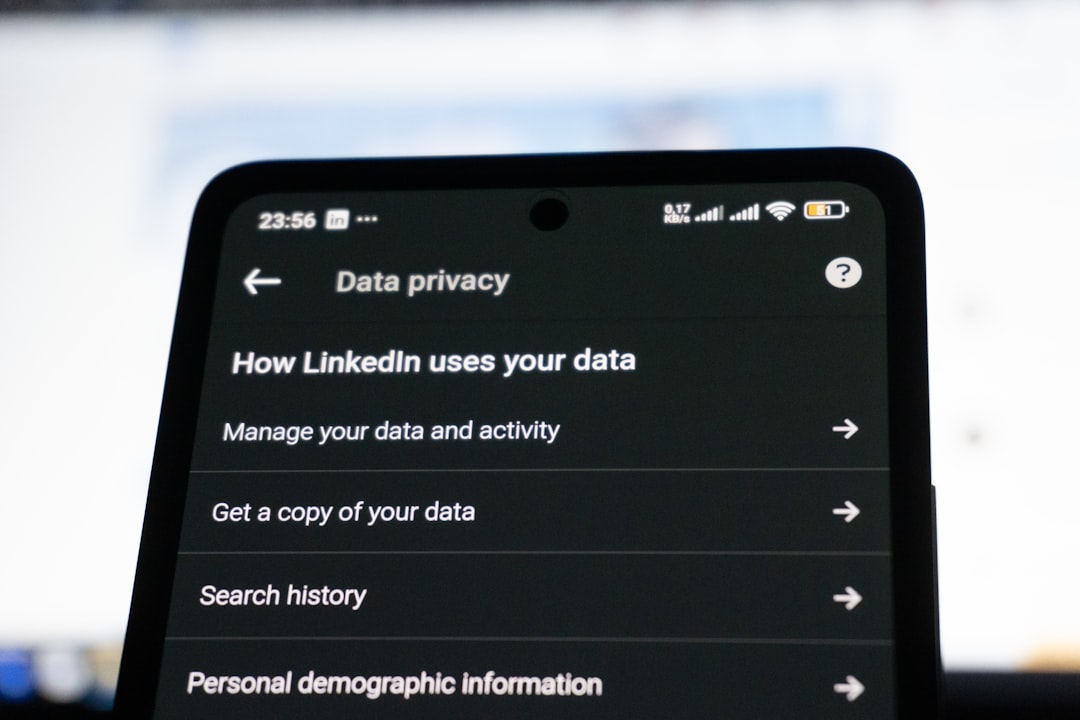
This section allows you to adjust how alerts are delivered and which types of interactions trigger them.
Step 3: Adjust Push Notification Preferences
Under Preferences, select Push notifications. Here you can:
- Enable or disable direct message notifications entirely
- Control alerts for message requests
- Filter notifications from people you do not follow
If you want to stop all DM push alerts, simply toggle the option off. Remember that disabling push notifications does not delete messages; it only stops alerts.
Step 4: Configure Email Notifications
If you prefer fewer emails, navigate to the Email notifications section and review the options.
- Uncheck direct message notifications if unnecessary
- Customize frequency preferences
Many professionals disable email alerts while keeping push notifications active for faster response times.
Step 5: Mute Specific Conversations
If a single chat becomes distracting, you do not need to disable all DM notifications.
To mute a specific conversation:
- Open the conversation in Messages
- Select the information or settings icon
- Choose Mute notifications
This allows you to maintain overall alert functionality while silencing particular threads.
How Device Settings Affect DM Notifications
Even if X notifications are enabled within the app, your device settings can override them. Most smartphones have system-level notification controls that determine:
- Whether alerts appear on the lock screen
- Whether banners are displayed
- Whether sound or vibration is used
- If previews are visible
For example, if your phone’s notifications for X are turned off in system settings, you will not receive push alerts regardless of in-app settings.
It is good practice to verify both levels of control:
- X app notification settings
- Device notification permissions
Privacy Considerations for DM Notifications
DM notifications can reveal message previews on your lock screen. If privacy is a concern, you may want to:
- Disable message previews
- Restrict lock screen visibility
- Use notification filtering options
This is particularly important for business accounts that handle confidential inquiries or personal accounts accessed in shared environments.
Balancing accessibility and discretion is key.
Common Questions About X DM Notifications
Does X notify you for message requests?
Yes, though message request notifications may be filtered depending on your settings. You can enable or disable these separately.
Can you turn off notifications for one person only?
Yes. Muting a conversation prevents alerts from that specific thread while preserving other notifications.
Will someone know if you mute their messages?
No. X does not inform users when their conversation has been muted.
Do verified accounts receive priority notifications?
Notification behavior may differ depending on account settings and filters, but users maintain full control over whether alerts are received.
Best Practices for Managing DM Alerts
Effective alert management helps prevent missed messages while reducing distraction.
Consider these strategies:
- Enable push notifications during business hours only
- Disable email alerts if they add unnecessary clutter
- Use conversation muting to manage group chats
- Review settings monthly to ensure preferences still match your needs
Professionals handling customer inquiries should prioritize responsiveness, while casual users may prioritize minimal interruptions.
Final Thoughts
X does send notifications for DMs by default, but the platform provides robust controls to tailor your alert experience. Whether you want real-time push notifications, email updates, or complete silence, the system is flexible and customizable. By following the five steps outlined above, you can confidently manage how and when you are notified about direct messages.
Properly configured notifications enhance productivity, protect privacy, and ensure you never miss important communication. The key is understanding both platform-level and device-level settings—and reviewing them periodically to keep your experience aligned with your goals.
