Dark mode has become an increasingly popular feature across many apps and digital platforms. Designed to reduce eye strain and enhance readability in low-light environments, it has quickly become a preferred mode for countless smartphone and desktop users. If you’re a frequent user of DoorDash and are looking to activate dark mode, understanding the current availability and settings options is essential. This article serves as a comprehensive guide to help you enable dark mode on the DoorDash app or website, where possible, and discusses alternate methods to achieve a similar effect even where native support may be limited.
TLDR: Dark Mode on DoorDash Summary
If you’re trying to enable dark mode on DoorDash, it’s important to note that the company has not yet implemented a built-in dark mode feature for all platforms. However, you can still enable dark backgrounds using system-wide dark mode settings on iOS and Android, or browser extensions on desktops. Third-party tools like Night Eye or Dark Reader offer reliable dark mode experiences for the browser version. Until native support is released, these workarounds are your best bet.
Why Use Dark Mode?
Before diving into how to enable dark mode, it’s worthwhile to understand why so many users prefer it. Here are some clear benefits:
- Reduced Eye Strain: Dark mode decreases glare, making it easier to navigate screens in low-light settings.
- Energy Efficiency: On OLED and AMOLED displays, dark themes can extend battery life by using less power.
- Improved Readability: In darker environments, white backgrounds can be blinding. Dark mode offers a soft, comfortable viewing experience.
- Aesthetics: Many users find dark interfaces visually appealing and sleek.
Is There a Native Dark Mode in DoorDash?
As of the most recent update, DoorDash does not offer a built-in dark mode feature within its mobile applications or website. This can be somewhat surprising, given the popularity of the feature in apps such as Instagram, Twitter, and even food delivery competitors like Uber Eats. Nonetheless, there are certain tricks and third-party solutions that can get you most of the way there.
Option 1: Enabling Dark Mode Using Your Device Settings
For iOS (iPhone and iPad):
iOS allows system-wide dark mode settings that many apps—including some portions of DoorDash—may adhere to by default.
- Go to Settings.
- Select Display & Brightness.
- Tap Dark under the Appearance section.
When this setting is turned on, supported apps will automatically switch to dark mode. Although DoorDash doesn’t fully adapt to this mode yet, certain elements like menus or modal dialogs may appear darker depending on the iOS version and app updates.
For Android Devices:
Just like iOS, Android allows for a dark mode that can affect apps globally.
- Go to Settings.
- Tap Display.
- Select Dark Theme.
Once turned on, apps that support dark mode will reflect the change. DoorDash’s behavior depends on the app version and Android build you’re using, but the visual effect is often limited to navigational bars and system UI elements.
Option 2: Using a Browser Extension for Dark Mode on DoorDash Website
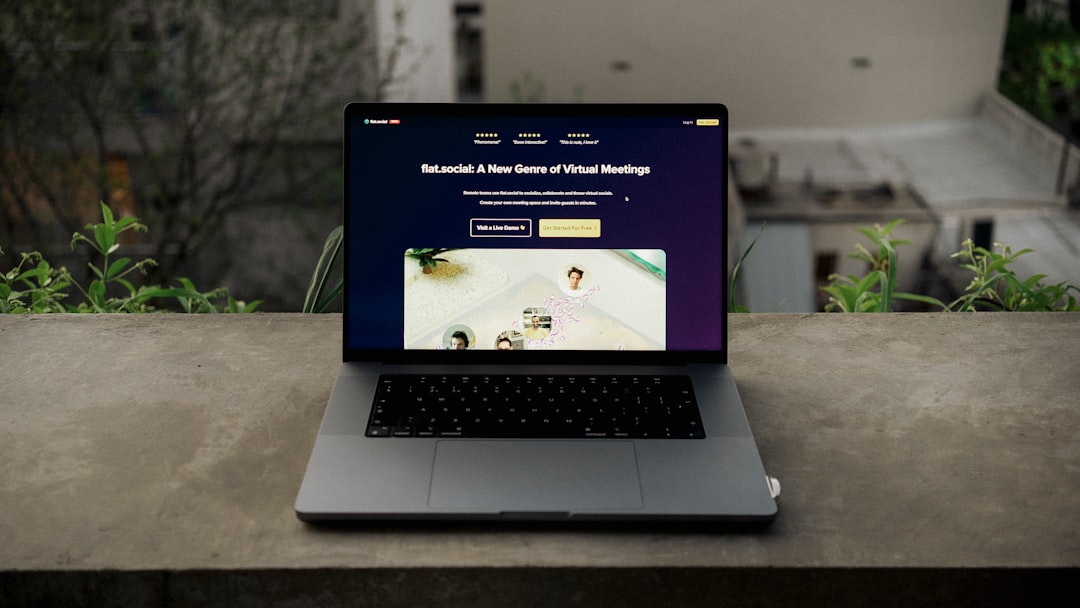
If you’re accessing DoorDash through a web browser, you’re in luck. Several browser extensions allow you to manually toggle websites into dark mode even when those websites don’t offer native support.
Recommended Extensions Include:
- Dark Reader (Chrome, Firefox, Edge): A powerful open-source tool that seamlessly converts light-themed websites into dark ones.
- Night Eye: Offers granular customization and works across a wide range of sites, including DoorDash.
- Super Dark Mode: Another viable option with adjustable settings and robust performance.
How to Apply These Extensions:
- Open your browser’s extension store (e.g., Chrome Web Store).
- Search for any of the above-mentioned dark mode extensions.
- Click Add to Chrome (or similar, depending on browser).
- After installation, visit DoorDash.com.
- Click on the extension icon in your toolbar and toggle on the dark mode.
The effect is typically immediate and offers excellent contrast control, especially when you’re browsing menus or adding items to your cart late at night.
Option 3: Developer Tools (For Advanced Users)
For those who are technically inclined, using browser developer tools can manually override CSS to enforce dark backgrounds and text colors on the DoorDash website. This approach is not user-friendly and involves editing HTML or injecting custom style sheets, and therefore not recommended for the average user. However, it’s a feasible method for tech-savvy users who want highly personalized solutions.
Steps include:
- Open the DoorDash website in Chrome.
- Right-click anywhere and select Inspect.
- Navigate to the Console or Elements tabs and insert custom CSS code to override the website’s default styles.
Note: Always proceed with caution when using these tools, especially on live websites to avoid breaking page functionality.
When Will DoorDash Introduce a Native Dark Mode?
As of now, DoorDash has not announced any official release or development timeline for a built-in dark mode feature within the app or website. Users have raised the request through forums and feedback directly to the company, but no concrete commitments have been made. That said, ongoing trends in UI/UX development suggest that we may see this implemented in the future as user demand grows.
Tips to Maintain a Comfortable Viewing Experience Until Then
While waiting for native implementation, here are some additional tips to optimize your DoorDash experience during late-night use:
- Lower Your Screen Brightness: Adjust brightness manually or use adaptive brightness features to respond to ambient lighting.
- Use Blue Light Filters: Apps like f.lux or your device’s night mode help reduce blue light exposure that can interfere with sleep.
- Schedule Dark Mode: Both iOS and Android allow automatic dark mode activation during nighttime hours.
Conclusion: An Imperfect But Workable Dark Mode Experience
While DoorDash hasn’t yet delivered a native dark mode solution, users are not without options. Through system settings, browser extensions, and a bit of technical manipulation, it is entirely possible to enjoy a darker, more eye-friendly experience when using the DoorDash app or website. As consumer feedback continues to shape app development, there’s hope that DoorDash will soon offer a dedicated feature aimed at improving nighttime usability.
In the meantime, staying informed and applying the right tools can bridge the gap between usability and comfort. Whether you’re ordering food late at night or simply prefer a darker interface, these steps will help you gain a more pleasant visual experience.