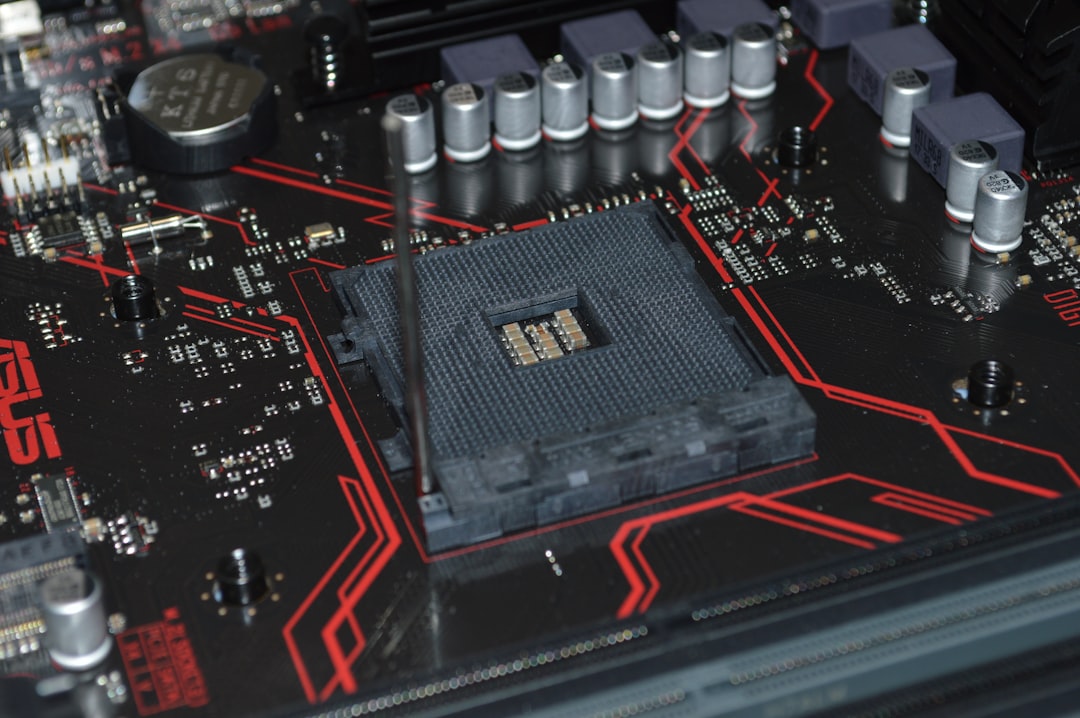
Laptop users around the world are no strangers to unexpected shutdowns, sluggish performance, or unexplained overheating. These issues can be frustrating, especially when productivity is at stake or critical work isn’t saved in time. Thankfully, a range of monitoring tools exist to help diagnose and prevent such occurrences by keeping a close eye on battery health, thermal activity, and internal sensors.
TLDR (Too Long; Didn’t Read)
If your laptop frequently overheats or shuts down unexpectedly, it’s likely due to battery issues, thermal inefficiencies, or faulty sensors. To stay ahead of such problems, using reliable diagnostic tools is crucial. Tools like HWMonitor, BatteryInfoView, and Core Temp offer real-time insights and history logs to help users troubleshoot and maintain their systems. Here’s a breakdown of the top five tools laptop users trust to safeguard performance and prolong the life of their devices.
1. HWMonitor – The All-in-One Hardware Diagnostic Tool
Supported Platforms: Windows
HWMonitor is one of the most popular monitoring tools used by tech enthusiasts and IT professionals alike. Designed by CPUID, this free utility offers a detailed snapshot of your laptop’s inner workings, from CPU and GPU temperatures to fan speeds and voltage levels.
- Battery Health: Displays current charge capacity, voltage, wear level, and power status.
- Thermals: Scroll through thermal data for all available cores and components, updated in real time.
- Sensor Monitoring: Tracks motherboard sensor outputs including chassis temps and power supply voltages.
HWMonitor’s straightforward interface and in-depth reporting make it ideal for identifying when your CPU is operating in dangerous temperature ranges—often the root cause of sudden shutdowns.
2. BatteryInfoView – A Deep Dive into Battery Performance
Supported Platforms: Windows
Operating on laptops day and night can take a toll on your battery. BatteryInfoView, a tool developed by NirSoft, gives a detailed breakdown of your laptop’s battery specifications, current status, and long-term wear trends. It’s especially useful for detecting issues with power delivery that may cause abrupt shutdowns or rapid declines in battery life.
- Charging Cycles: View your battery’s charge/discharge cycle history.
- Power States: Logs transitions between AC and battery power along with timestamps.
- Capacity Trends: Compare full charge capacity against design capacity to see long-term degradation.
BatteryInfoView is light on system resources and doesn’t need installation—perks that mobile users will appreciate when diagnosing on the go.
3. Core Temp – Precision CPU Thermal Monitoring
Supported Platforms: Windows
When it comes to heat, your laptop’s CPU is often the main culprit. Core Temp is a highly specialized tool that focuses solely on monitoring processor temperatures at an exceptionally granular level. It supports a wide array of Intel, AMD, and VIA processors and can detect each individual core temperature individually.
- Real-Time Temperature Readouts: Displays processor temp updates per second.
- Logging & Alerts: Set thresholds for temp warnings and perform automated shutdowns if limits are breached.
- Background Mode: Runs silently in the system tray with minimal performance impact.
Core Temp is especially helpful for power users and gamers whose high workloads demand constant system vigilance. Overheating detected early can prevent hardware degradation and improve performance reliability.
4. HWiNFO – Professional-Grade Hardware Diagnostics
Supported Platforms: Windows
If you’re looking for something even more comprehensive than HWMonitor, HWiNFO might be your go-to solution. Often described as a “Swiss Army Knife” for system monitoring, it is favored by system integrators and tech professionals who need complete visibility into system operations.
- Extensive Hardware Reporting: View detailed hardware profiles beyond CPU and battery—network adapters, memory modules, and even VRMs (voltage regulator modules).
- Sensors Graphing: Offers plotting graphs of thermal and voltage changes over time.
- System Logging: Long-term logs for battery health, temperature fluctuations, and fan control response.
This tool is more technical than others, but its depth and customizability make it ideal for power users aiming to eliminate guesswork. If a component is misbehaving, HWiNFO will surface it quickly.
5. Open Hardware Monitor – The Open Source Alternative
Supported Platforms: Windows, partial Linux support
Looking for an open-source option? Open Hardware Monitor brings many of the same features found in HWMonitor and Core Temp but with added transparency and community contributions. It works with most modern chipsets and sensors and provides a clear overview of everything from GPU load to drive temperatures.
- Open Source Code: Modify or enhance the tool yourself if you’re technically inclined.
- Compact Widget Interface: Customize and pin sensor widgets to your desktop for always-on tracking.
- Cross-Sensor Comparison: Easily compare CPU, GPU, and mainboard temps across the board.
While it may lack the polish of some premium tools, Open Hardware Monitor provides flexibility and innovation that advanced users crave. It’s perfect for system modders or developers who want a transparent view into sensor behavior.
When Should You Use These Tools?
Even if you’re not experiencing issues, regularly using monitoring tools can go a long way in extending your laptop’s life. Here are a few signs you should start monitoring more closely:
- Your system shuts down abruptly, especially during high-intensity tasks like gaming or video rendering.
- You notice your device’s fan running loudly or continuously.
- The laptop feels unusually hot to the touch even during basic tasks.
- Battery drains faster than usual or fails to charge fully.
Integrating just one or two of these utilities into your daily workflow can reveal problematic trends before they become hardware disasters.

Tips for Interpreting Sensor Readings
While these tools offer a wealth of data, knowing how to interpret it is key. Here are some quick tips:
- Battery Wear Levels: A healthy battery should have a wear level below 20%. Higher numbers could indicate the need for a replacement.
- CPU Temperatures: Idle temps should be between 40–60°C; under load, they shouldn’t exceed 85°C. Beyond 90°C typically triggers thermal throttling.
- Voltage Discrepancies: Sudden drops in CPU or GPU voltage could point to PSU (Power Supply Unit) instability, especially in older machines.
Final Thoughts
Laptops are complex devices that pack powerful components into compact shells. This performance density makes them especially vulnerable to overheating, degraded batteries, and sensor inaccuracies. By integrating tools like HWMonitor, BatteryInfoView, Core Temp, HWiNFO, and Open Hardware Monitor into your digital toolkit, you empower yourself with critical insights that lead to better maintenance, smoother performance, and fewer frustrating surprises.
Whether you’re a casual laptop user or a performance-hungry developer, these tools can help ensure that what’s under the hood is running just as smoothly as the software you depend on every day.
